Articles by "Windows 10"
Showing posts with label Windows 10. Show all posts
Remote, IT Service, Business email, G Suite, Office 365, Website, Business, Office Network, Intranet, Server, Social Media

While working on domain-controlled systems, upon trying to remotely access computers, users have reported the following error:

When a user tries to establish a connection to a device with NLA enabled, NLA will delegate the user's credentials from the client through a client side Security Support Provider to the server for authentication before creating a session. Only once the user authentication is successful will the connection be established.

To disable it using Properties.

  • Tap the Windows Key  + R keys to open the Run dialog box.
  • After that, type in “sysdm.cpl” and tap Enter to open System Properties.
  • Next, go to the remote tab and uncheck the checkbox for the “Allow connections only from computers running Remote Desktop with Network Level Authentication (recommended)” option.
  • Now click the Apply button to save the changes made and exit System Properties 


Remote, IT Service, Business email, G Suite, Office 365, Website, Business, Office Network, Intranet, Server, Social Media
Change your local account picture in Windows 10
  1. Select the Start button, then select Settings  > Accounts > Your info.
  2. Under Create your picture, select Browse for one. Or, if your device has a camera, select Camera  and take a selfie.

Note: 

Windows remembers the last three pictures you’ve used. Select the picture on the Your info page to switch to that one.


Delete an account picture

Windows is designed to let you switch between your three most recent pictures on the Your info page. If you really need to delete one of your account pictures:

Go to C:\Users\yourname\AppData\Roaming\Microsoft\Windows\AccountPictures.
Replace yourname with your account name.
If you’re unable to find the AppData folder in File Explorer , it might be hidden. Select the View setting and select the checkbox next to Hidden Items to show all items in a folder.
Delete the account picture you no longer want to use.


Remote, IT Service, Business email, G Suite, Office 365, Website, Business, Office Network, Intranet, Server, Social Media
  • Your desktop icons may be hidden. To view them, right-click (or press and hold) the desktop, select View and select Show desktop icons. To add icons to your desktop such as This PC, Recycle Bin and more:
    • Select Start  > Settings  > Personalization > Themes > Desktop icon settings.
    • Under Desktop Icons, check the boxes next to the icons you would like to have appear on your desktop. 
    • Select Apply and OK.
  • Note: If you are in tablet mode, you may not be able to see your desktop icons properly. You can find the program by searching for the program name in File Explorer. To turn off tablet mode, select action center  on the taskbar (next to date and time), and then select Tablet mode to turn it on or off.


Remote, IT Service, Business email, G Suite, Office 365, Website, Business, Office Network, Intranet, Server, Social Media
Quick Assist, originally known as Windows Remote Assistance, is a feature of Windows XP and later that allows a user to temporarily view or control a remote Windows computer over a network or the Internet to resolve issues without directly touching the unit. It is based on the Remote Desktop Protocol.
Try it out; it's not known well how it's really easy and powerful tool.
  • Get assistance:
  • Give assistance: 
퀵어시스트는 보통 윈도우즈 원격지원으로 XP버전에도 있는 기능이지만 사용방법이 복잡하고 어려워서 많이 사용되지 못했습니다. Windows 10에는 새로운 이름으로 더욱 쉽고, 강력해진 기능으로 크롬 원격지원이나 팀뷰어보다 손색이 없습니다.
  • 지원받기: 도움을 받는 사람
  • 지원하기: 도움을 주신 사람 (Microsoft online account 필요)
    • 코드 생성
    • 생성된 코드를 지원받는 분께 주고, 원격 세션을 기다림 

Image result for windows quick assist


Remote, IT Service, Business email, G Suite, Office 365, Website, Business, Office Network, Intranet, Server, Social Media
Here is quick guide to open Backup and Restore (see the following picture) on Windows 10 computer at the super speed.
  • Desktop > mouse right click on any empty space
  • Select New > Shortcut 
  • Follow the steps below.


Remote, IT Service, Business email, G Suite, Office 365, Website, Business, Office Network, Intranet, Server, Social Media
Easiest way to set Korean typing input (IME-Input Method Editor) as default (first choice).

  • Type "IME" in Search Window
  • Select " Edit Language and keyboard options"


  • Click 한국어 IME, then  Up arrow & Down arrow show up.
  • Click Up arrow to move up 한국어 in order to set up as the default input method. 
  • That's it.

Remote, IT Service, Business email, G Suite, Office 365, Website, Business, Office Network, Intranet, Server, Social Media
화면에서 필요한 부분 간단히 캡쳐해서 바로 이메일로 보낼 수 있습니다.
아래 유튜브 파일 참고하세요.


Sometimes the easiest way to make a copy of something is to take a snapshot of your screen—this is what Snipping Tool does. Use it to save and share news stories, movie reviews, or recipes.

Capture all or part of your PC screen, add notes, save the snip, or email it from the Snipping Tool window. You can capture any of the following types of snips:
  • Free-form snip. Draw a free-form shape around an object.
  • Rectangular snip. Drag the cursor around an object to form a rectangle.
  • Window snip. Select a window, such as a browser window or dialog box, that you want to capture.
  • Full-screen snip. Capture the entire screen.

Snipping Tool mode options


Remote, IT Service, Business email, G Suite, Office 365, Website, Business, Office Network, Intranet, Server, Social Media
If your search bar isn't displaying correctly or is hidden, press and hold (or right-click) the taskbar and select Cortana. Select Show search box.

If the above doesn't work, try opening taskbar settings. Select Start  > Settings  > Personalization > Taskbar. If you have the Use small taskbar buttons toggle set to On, you will need to turn this Off to see the search box. Also, make sure the Taskbar location on screen is set to Bottom.


Image result for windows 10 search box


Remote, IT Service, Business email, G Suite, Office 365, Website, Business, Office Network, Intranet, Server, Social Media
Create Windows 10 installation media

To get started, you will first need to have a license to install Windows 10. You can then download and run the media creation tool. For more information on how to use the tool, see the instructions below.

Download...


Remote, IT Service, Business email, G Suite, Office 365, Website, Business, Office Network, Intranet, Server, Social Media

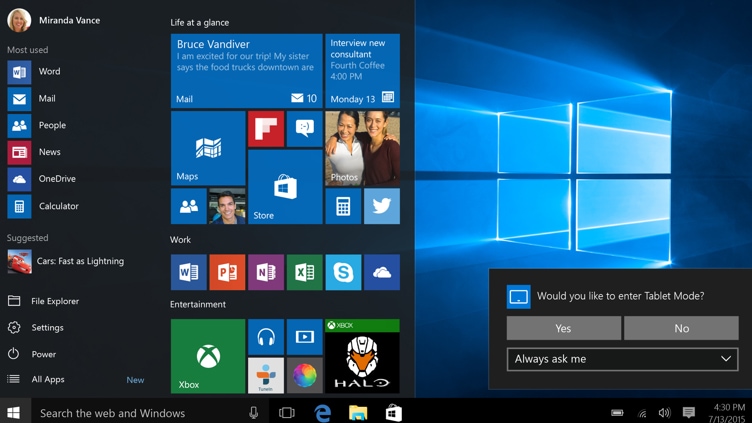
  • Windows 10 Pro is built for business
    • Bit locker
    • Automatic files save on clouds
    • Remote desktop
    • Create own apps section in Windows Store
  • More secure
    • Bit locker
    • Windows defender Antivirus
    • Automatic update
  • Remote desktop
    • from virtually anywhere
  • Windows Ink
    • Capture great ideas
    • Smart note taking
  • Windows Hello
    • Sign in to your Windows device in less than 2 seconds
    • 3 times faster than password
  • Office
    • Multitasking features
    • Manage Office apps and docs n one screen
  • Microsoft Edge
    • the faster, safer browser build for Windows 10.
    • an improved address bar
  • Cortana
    • personal digital assistant
    • upcoming meeting, group calendar in syns, integrated with Windows apps.

Windows 10 Pro

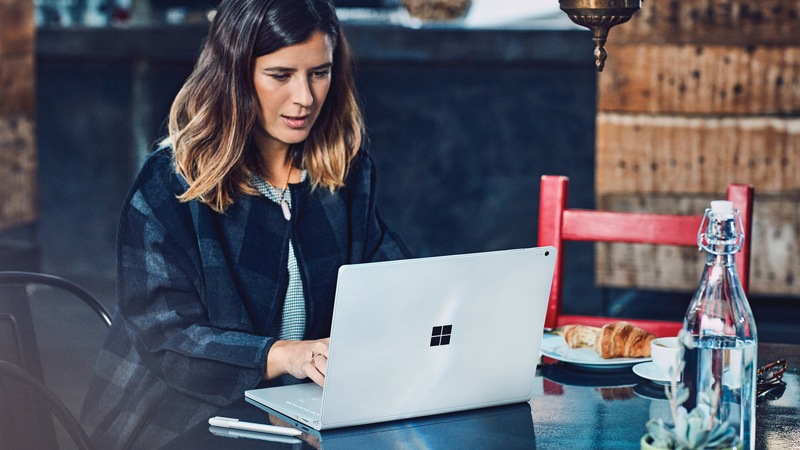
Woman sitting at cafe table with Surface


Remote, IT Service, Business email, G Suite, Office 365, Website, Business, Office Network, Intranet, Server, Social Media
  • RUN > mstsc
  • With Remote Desktop Connection, you can connect to a computer running Windows from another computer running Windows that's connected to the same network or to the Internet. For example, you can use all of your work computer's programs, files, and network resources from your home computer, and it's just like you're sitting in front of your computer at work.
  • more info..
  • Note: You can use Remote Desktop to connect to Windows 10 Pro and Enterprise, Windows 8.1 and 8 Enterprise and Pro, Windows 7 Professional, Enterprise, and Ultimate, and Windows Server versions newer than Windows Server 2008. You can't connect to computers running the Home edition (like Windows 10 Home).

Remote, IT Service, Business email, G Suite, Office 365, Website, Business, Office Network, Intranet, Server, Social Media
RUN (Windows Key + R)


  • %temp%: Clear temp files
  • cmd: open Dos prompt
  • MSconfig: open system configuration
  • sysdm.cpl: open system property
  • Powershell: open powershell
  • perfmon.msc: open performance monitor
  • regedit: open registry
  • \: open C: drive
  • .: open user's home directory
  • ..: open Users folder\
  • Control: open control panel
  • ncpa.cpl: open network connection
  • Notepad: open notepad
  • osk: On-screen keyboard
  • taskmgr: open task manager
  • mstsc: open remote desktop connection
  • appwiz.cpl: open add/remove program
  • powercfg.cpl: open power setting

Remote, IT Service, Business email, G Suite, Office 365, Website, Business, Office Network, Intranet, Server, Social Media

Description

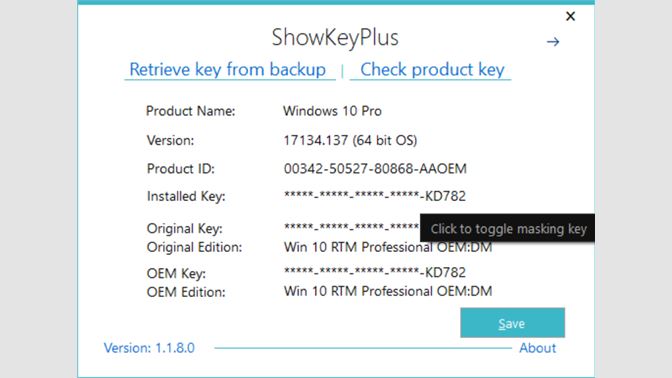
Find your Windows product key with ShowKeyPlus. Your product key depends on the type of Windows version you bought: • If you bought Windows from an authorized retailer, the product key will only show as the Installed key. This applies to OEM System Builder keys as well. • If you upgraded Windows, the Original key will be the key installed prior to the upgrade. NB if you upgrade to Windows 10 for free, you'll receive a unique ‘digital entitlement’ instead of a product key. The key displayed will be a generic key in that case. • If you bought a new PC running Windows, the product key will be pre–installed on your PC and the key will be included in the firmware in the case of Windows 8 or 10 - or as an OEM marker, in the case of previous versions. The OEM key will display the key in the case of the former, or whether your PC was built for Windows Vista or Windows 7. • Apart from the key, the associated Edition of each key is displayed below it.


Screenshot

Remote, IT Service, Business email, G Suite, Office 365, Website, Business, Office Network, Intranet, Server, Social Media
7 best new features of Windows 10 April 2018 Update,


  • Timeline (Settings > Privacy > Activity history)
  • Nearby Sahring (Settings > System > Shared experiences)
  • Focus assist (Settings > System > Focus assist.)
  • Password recovery for local accounts (Settings > Accounts > Sign-in options)
  • Choose your GPU (Settings > System > Display and click Graphic settings)
  • Windows Diagnostic Data Viewer Settings > Privacy > Diagnostics & feedback 
  • Mute tabs in Edge (finally)

Remote, IT Service, Business email, G Suite, Office 365, Website, Business, Office Network, Intranet, Server, Social Media

  1. Start Registry Editor.
  2. Locate and then click the following registry subkey: HKEY_LOCAL_MACHINE\System\CurrentControlSet\Control\Terminal Server\WinStations\RDP-Tcp\PortNumber.
  3. On the Edit menu, click Modify, and then click Decimal.
  4. Type the new port number, and then click OK.
  5. Quit Registry Editor.
  6. Restart the computer

  • Additional Settings
  • Local PC firewall rule update to allow "changed" port.
  • Port forwarding rule add to Internet Router for remote connection.


Remote, IT Service, Business email, G Suite, Office 365, Website, Business, Office Network, Intranet, Server, Social Media
  • Issue: Windows 10 can't access the shared network folder of Windows 2003 server.
  • Windows 10 has SMB1 disabled by default
  • SMB 1 is to be enabled but it won`t be used if SMB2.0 or SMB 3.0 is available.


Remote, IT Service, Business email, G Suite, Office 365, Website, Business, Office Network, Intranet, Server, Social Media
  • DOS prompt open
    • Windows key + R
    • type "cmd"

  • IP check
    • ipconfig 
    • ipconfig /all